Managing Business Rules with Toolbar
The purpose of the Toolbar is to give rule authors an easy-to-use UI that provides basic rule management functionality such as creating, editing, and deleting rules. It can also be used to select (load) an existing rule, and to name and describe new or existing rules.
The Toolbar does not actually store your rules anywhere, nor does it delete or update them in their physical location. Instead, it simply provides you, the developer, with the rule's data every time a rule author wants to work with that rule. Upon receiving that data, you must decide where to store the rule, where to load it from, and whether the current rule author has the right to perform any actions on that rule.
The Toolbar can be removed from the Rule Editor's UI by setting the Control.ShowToolBar property to false. It is shown by default. You must implement your own controls, such as Save and Load buttons, and “connect” those controls with the server-side code if you hide the Toolbar but still need to manage rules.
If shown, the Toolbar always appears on top of the Rule Area. It consists of several UI elements:
Rules menu. This menu provides options to create new rules and load existing ones, if there are any. The number of options to create new rules and the labels of those options depend on the Mode property of the Control class. If Mode is set to RuleType.Execution, the Toolbar will include two options — New execution type rule... and New evaluation type rule.... Selecting one of those options will clear the Rule Area for a new rule of the selected type. If Mode is set to RuleType.Evaluation or RuleType.Loop, the Toolbar will include only one option named New rule.... Selecting that option will clear the Rule Area for a new rule of evaluation type in Evaluation mode or execution type in Loop mode. As you can see, it is important to understand Rule Editor's modes and how they operate. You can easily change the labels of all these menu options by using Help XML.
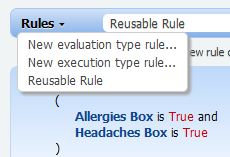
You can also include options in this menu to load existing rules for editing. It is entirely up to you, the developer, to decide which rules to load into the Rules menu, as long as they correlate with the current value of Control.Mode. You can load any type of rule when Mode is set to RuleType.Execution. However, the Rule Editor may not work properly if you load any execution type rule into the Rules menu while Mode is set to RuleType.Evaluation (its default value). Most of our demo projects demonstrate the use of the Toolbar and how to load rules into its Rules menu.
Control.ToolBarRules is the property that must be populated for existing rules to appear in the Rules menu on the client. It is of the ICollection.MenuItem type.
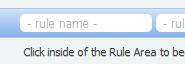
Name text box. Rule authors can name rules by typing the rule name into the Name text box. The name is stored in Rule XML. By default, it is a required field unless the Toolbar is hidden. Set Control.RuleNameIsRequired to false to make this field optional. The default placeholder attribute of the box can easily be changed with Help XML.
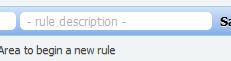
Description text box. Rule authors can also give rules short descriptions by typing them into the Description box. This field is optional. The Rule Editor displays rule descriptions in the Help String when rule authors move through the list of existing rules in the Rules menu with the mouse or keyboard. The Rule Editor also shows descriptions of reusable rules when a rule author hovers the mouse over the rule in the Rule Area. The default placeholder attribute of the box can easily be changed with Help XML.
Save button. The Save button allows rule authors to notify the server that the current rule needs to be saved. The Rule Editor does not actually save the rule for you since it has no knowledge of the infrastructure or systems involved in your rule processing. Instead, it passes the rule data to the server and makes it available to your code as a compact, string-based XML document, together with other useful data. It is up to you how to handle that data.

Delete button. The Delete button notifies your server code that the rule author wants to delete the currently loaded rule. As with every other part of the Toolbar’s functionality, the Rule Editor does not (and cannot) actually delete your rules. Instead, it informs your code which rule the user wants to delete. This button is visible on the Toolbar only when a previously saved rule is loaded into the Rule Area.

Please refer to our demo projects for details on implementing particular features described in this article.