The AI Rule Editor
The AI Rule Editor is a tab beside the Rule Editor in the Rule Repository's rule dialogs. A user describes a rule in plain language, in any language, and an AI model writes it against the dialog's source object. The repository checks every rule the model writes, tells the user at once whether it is valid, and carries the latest rule to the Rule Editor tab, where it can be read element by element, changed by hand and saved with the dialog's usual buttons.
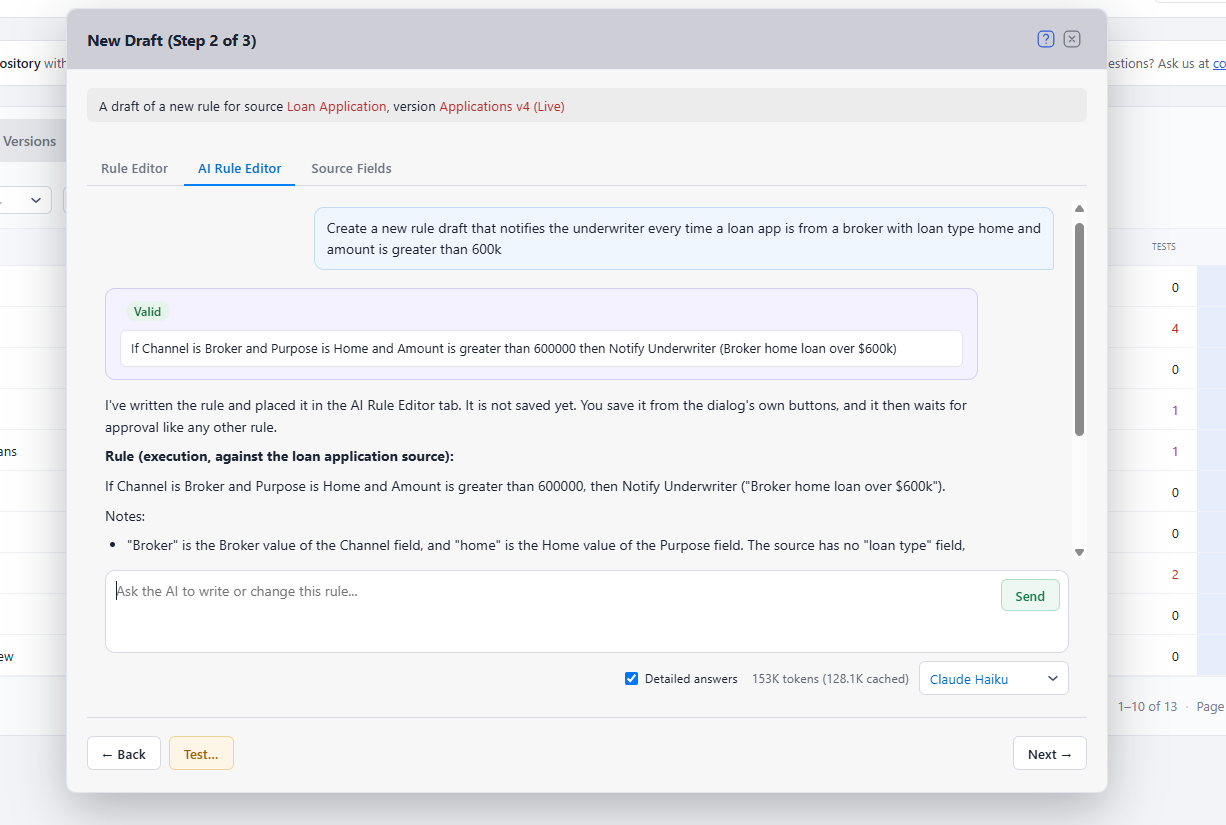
The AI Rule Editor is part of the Rule Repository (since v7). It does not exist in a stand-alone Rule Editor, and it needs neither the MCP server nor the AI Assistant: it appears for a user when your application registers at least one AI model and grants that user the AiRuleEditorUse permission (111). See The AI Assistant and the AI Rule Editor for the setup.
This page explains what the AI Rule Editor does, where it appears, how a rule moves between the two editors, what the model can and cannot do, and what it costs to run. The step-by-step tasks for business users are in the user guide's AI Rule Editor page.
Why It Is Different from a Chat Window
A general-purpose AI asked to "write a business rule" produces text that looks right and may name a field that does not exist, compare a date to a number, or call a method with the wrong arguments. The AI Rule Editor cannot do that, because the model never hands the user free text as a rule:
- The model writes in the repository's rule format. It proposes a rule as a structured list of the rule's elements (fields, operators, values, methods, actions, reusable and inline rules), using the members of the source version the dialog is about. It finds those members with the repository's own tools, by their names, descriptions, AI aliases and AI descriptions.
- The server checks every proposal. Each rule the model writes is checked against the source version on your server, with the same check the Rule Editor and the rule engine use: every member must exist, every value must fit its type, every method must resolve to one overload, every reusable rule called must be available. The problems go back to the model, which usually fixes them in the same turn.
- The user sees the verdict, not the model's opinion of its work. Each proposal is shown as a card that starts with its state, worked out by the server: Valid, Unfinished or Invalid, then the rule as text, then each problem found.
- Nothing is saved by the AI. The AI Rule Editor has no tool that saves, updates or deletes anything. A rule reaches the database only when the user saves it with the dialog's own buttons, through the Rule Editor, under the user's own permissions.
So a Valid card means the rule is complete and fits the source object: it can be saved and evaluated. Whether it does what the user meant is still the user's to judge, by reading it and testing it.
Where It Appears
| Dialog |
What the tab does |
| New Rule, step 2 (a new rule, a new version, a clone) |
Writes the rule, or changes the rule the version or clone started from |
| New Draft, step 2 |
Writes or changes the draft's rule |
| Draft |
Changes the draft's rule |
| Test, when its rule pane holds a draft |
Writes or changes that draft's rule, in a conversation of its own |
| Rule Version |
Read-only: answers questions about the version. A stored version never changes |
The tab follows Rule Editor in each of these dialogs. It is not shown in the Result dialog of an evaluation. When the tab can be shown, the dialogs that hold it open wider (1040 pixels) to make room for the conversation.
The tab holds:
- The conversation: the user's messages, the model's replies, and a card for every rule the model proposes. While the model works, the conversation shows Working....
- The message box, with Send, or Stop while the model works. Its placeholder says what the tab is for: "Ask the AI to write or change this rule..." where the rule can be changed, "Ask about this rule version..." in a Rule Version dialog.
- The bar under the box: Detailed answers, the conversation's token count, and the list of models your application registered (the first is the default).
What the Model Knows When the Conversation Starts
The first message of a conversation is sent with what the dialog is about, so the user can talk about the rule at once without describing it:
- the source version the rule is written against;
- whether it is a new rule (and of which type), a new version, a clone, a draft or a stored version, and the rule or version it started from;
- the rule as it stands, in the repository's format and as text;
- the rules it calls or executes.
The dialog's context is sent again with every step, because the user can go back to step 1 of a New Rule or New Draft dialog and change it while the conversation goes on.
The model also gets the repository's own instructions for writing rules, and the instructions your application adds in AssistantSettings.Instructions: your company's terms, what your sources mean, the language to answer in.
One Rule, Two Editors
In an editable dialog the two tabs hold one rule. The latest change in either editor is the current rule, and each tab shows it when it is opened. Each editor can be changed only while its tab shows, so the tab being left always holds the latest rule.
- Leaving the AI Rule Editor tab for any other tab (Rule Editor, Source Fields, Details and the rest): if the model proposed a rule the Rule Editor does not hold yet, the server converts it and the Rule Editor loads it, invalid elements marked, before the new tab opens. Nothing is asked.
- Opening the AI Rule Editor tab after the rule was changed by hand: the Rule Editor's rule is shown as a card with its state and problems, and the next message is sent with it ("Sent with the rule from the Rule Editor tab"), so the model continues from the user's version, not its own.
- A Rule Editor emptied by hand: the tab says "The Rule Editor tab is empty now", and nothing is sent.
- Nothing changed on either side: switching tabs makes no request.
- A proposal that arrives while another tab shows (the user moved away while the model worked) goes into the Rule Editor at once, unless the Rule Editor was changed in the meantime: then the user's change is the newer one, and opening the AI tab brings it there.
- A rule the Rule Editor cannot load: the tab switches anyway, the Rule Editor keeps its own rule, the reason is shown, and the next message carries the Rule Editor's rule.
- The dialog's own buttons (Next, Test..., Keep as Draft, Convert and the save buttons) pressed while the AI tab shows load the model's newer rule into the Rule Editor first. If it cannot be loaded, the Rule Editor tab opens with the reason and the button is not pressed, so nothing is submitted that the user has not seen.
The model writes a new card for each proposal; the latest one is the rule, and earlier cards are history. A message always carries the rule whole, never a difference.
In a Rule Version Dialog
A stored rule version never changes, so its AI Rule Editor tab cannot propose rules. The first time it opens, it shows the version's rule as a card, and the model answers questions about it: what the version does, how it differs from another version, what it uses, how it was tested, what production recorded. It reads the version's tests, drafts, activity and recorded evaluations through the repository's read tools, and it can run tests on values it makes up for the purpose, without saving them; a test that would call production code asks the user to confirm it first.
To change the rule, start a draft from the conversation. With the AI Rule Editor tab showing, the user clicks the dialog's New Draft... (with permission to create drafts). The New Draft dialog opens on its own AI Rule Editor tab, started from the version, with the conversation's last request waiting in the message box. The request is not sent on its own: the user sends it after seeing the new dialog, so the model's tokens are spent on the user's word.
What the Model Can and Cannot Do
The model works for the signed-in user, under that user's permissions, narrowed by the rules every AI agent in the repository follows (see AI Agent Settings):
| It can |
It cannot |
| Find source members, data sources, and the reusable and inline rules the editor's menus offer |
Save, update or delete anything |
| Propose a rule and have it checked |
Make a version live, take one offline, approve, decline or delete |
| Read rules, versions, drafts, tests, activity and evaluations (in a Rule Version dialog) |
Read the internal notes users leave on records |
| Run tests on values it supplies, within the agent test-run limits |
Run a test that calls production code without the user's confirmation |
When the user saves a rule the AI Rule Editor wrote, the save is the user's, made through the Rule Editor under the user's permissions, exactly as if the user had written the rule by hand: it asks the same questions (such as whether to request approval) and carries no AI marker.
Languages
The user can write in any language the model understands. The model always writes the rule with the source's own member names, its canonical names; where your application gives the repository source labels in the user's language, the model reads them beside the canonical names, so a user can name a field in their own words.
Detailed Answers and Token Use
- Detailed answers is checked by default. Unchecked, the model gives only the essential answer: it leaves out explanations and does not restate a rule the card already shows, but never leaves out a problem, a risk or a refusal. The choice is shared with the AI Assistant, kept in the browser, and applies from the next step. It changes no tool and no check.
- The token count under the box is the conversation's total. Each step is one model call, and the repository records its input, output and cached tokens. The AI Rule Editor's conversations count in the AI Assistant's Usage tab, and your application's
OnUsage callback receives every call's tokens, marked as the AI Rule Editor's. Your CanStep callback can stop a turn before it costs anything (a monthly allowance, for example), and the user sees your message.
- A turn has a step limit (
MaxSteps, 25 by default). When it is reached the tab offers Continue.
The Conversation Afterwards
An AI Rule Editor conversation lasts as long as its dialog: once the dialog closes, the tab never shows it again. The repository keeps it for the Usage tab and deletes it after ConversationRetentionDays (90 by default), as it does the AI Assistant's conversations. The AI Rule Editor takes no attachments.
On Smaller Screens
The tab looks the same at every width, phones included: the conversation over the message box, and the bar under the box.
What Your Application Controls
| You want to |
Do this |
| Turn the AI Rule Editor on |
Register a model in AssistantSettings and give it to the request's Configuration.Assistant; grant 111. See The AI Assistant and the AI Rule Editor |
| Turn it on for some users only |
Grant 111 only to them, or give other users' requests a null Assistant |
| Offer the AI Assistant but not the AI Rule Editor, or the reverse |
Grant 110 and 111 separately: each opens its own feature |
| Choose the models |
AssistantSettings.Models; users pick from the list under the box |
| Tell the model about your business |
AssistantSettings.Instructions |
| Help the model find the right members |
Give your source's members clear descriptions, and AI aliases and AI descriptions; see Source Object |
| Limit cost |
CanStep, OnUsage, MaxSteps, and ContextBudget and MaxOutputTokens per model |
Every model call sends your AI vendor the conversation, the repository's instructions and the answers of the tools the model used: the source's definition, the rule, and in a Rule Version dialog its tests and recorded evaluations. Choose a vendor and a contract whose data terms suit that, or a model on your own hardware. See What Leaves Your Server.
Troubleshooting
| What you see |
Why |
| No AI Rule Editor tab |
The request's Assistant is null or has no models, or the user lacks 111 |
| The tab is there in one dialog and not another |
It is shown only in the dialogs listed above; in a Test dialog only when its rule pane holds a draft |
| A card stays Invalid |
The model could not fit the request to the source: ask it to fix the listed problems, or fix them in the Rule Editor. A field the request names may not exist in this source version |
| The model picks the wrong fields |
The members' descriptions, AI aliases and AI descriptions do not tell the model enough; improve them, or name the fields as the editor's menus show them |
| A turn stops with your own message |
Your CanStep refused the step |